Fashion Week: Three Worlds
Build a 12-second fashion film from one full-body photo. Review three generated looks, create their motion and export a vertical MP4 with optional music.
12-second vertical film · 3 shots · optional music
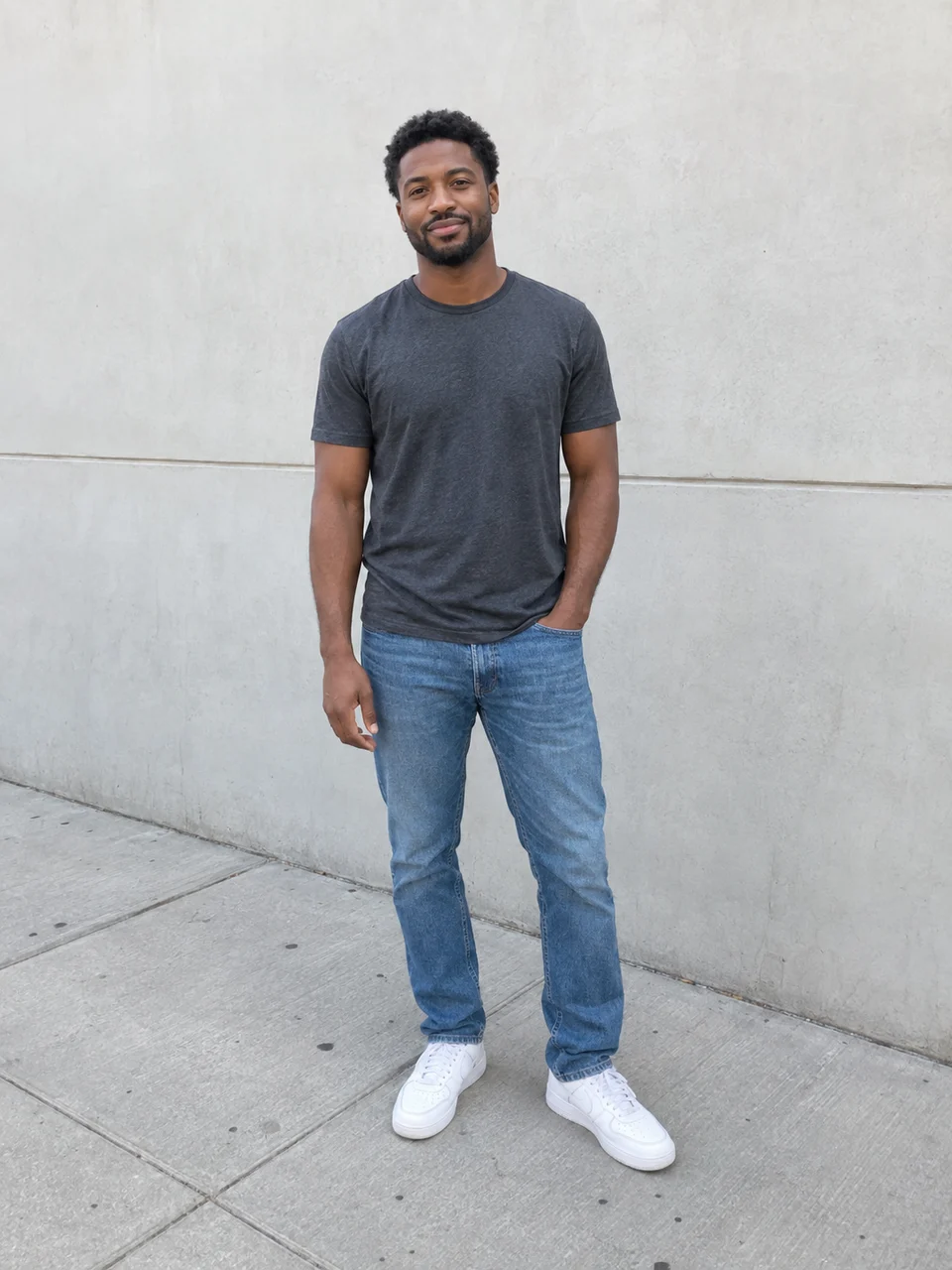 Original
Actual AI-generated example. Results vary with your inputs.
Your photo. Your style.
Start with a photo, or add one later.
Your photo
One person, with face, hands and shoes clearly visible.
Photos upload privately when you continue. Review costs before generating.
Tips & details
How it works
- Choose a clear full-body photo and continue after sign-in to prepare the workflow. Selected photos upload at this step; generation starts later.
- Review the image credit estimate and generate three looks. Inspect the face, hands and clothing, then approve the current frame pairs.
- Review the motion estimate, generate the three transition clips and watch each one. Regenerate an unsuitable shot before finishing the edit.
- Preview the 12-second edit with the runway soundtrack or no music. Export a 720 × 1280 MP4 in your browser; downloading and saving to the project are separate actions.
For the best result
Use one person in a simple standing pose, with an unobstructed face, hands and shoes visible. Keep the subject centered for the vertical edit.
What to expect
Images, motion and new generation attempts use credits shown in the run estimate. Likeness and transitions can vary. Keep the browser open during export; download alone does not save the finished file to the project.
Workflow steps
Prepare one photo for three generated looks
Use a sharp, evenly lit full-body image with room around the person. The starter creates Paris in warm light, Tokyo in electric-blue light and a terracotta editorial finale, with a different outfit direction for each. These are generated fashion looks, not a garment-fitting simulation. A simple pose makes it easier to compare the face, hands, body proportions and clothing before you spend credits on motion.
Check the transitions before the final edit
The motion stages connect your original photo to Paris, Paris to Tokyo, and Tokyo to the finale. Inspect both images in each pair and approve the current versions. If a look changes, review the affected frames again before making new motion. After generation, watch the full clips for face changes, fabric distortions and awkward transitions. The final edit fits each clip into four seconds, so its pacing may differ from the raw clip.
Fashion Week workflow questions
What photo can I use, and when is it uploaded?
Use one JPG, PNG or WebP image up to 10 MiB, with one person visible from head to shoes. Choosing it on the starter page prepares a local selection; continuing after sign-in uploads it into your workflow project. Opening the workflow does not start paid generation.
Why must I approve the frames before generating motion?
Each transition uses a specific start and end image. Approval records the current frames and their source settings. Replacing the photo, regenerating a look or changing relevant inputs can require a new review. Approval allows motion to run; it does not guarantee identity or a seamless transition.
How long is the final film, and what happens to the sound?
The default edit is 12 seconds at 720 × 1280 and 24 fps. Three generated clips are retimed into four-second sections, with their original audio muted and editorial titles added. Choose the bundled runway soundtrack or no music. This does not promise that each raw AI clip is generated at four seconds.
Can I retry one look or shot, and does it cost credits?
The workflow offers individual look and motion retries. Check the current credit estimate before confirming a new generation. Image and motion stages have separate costs; another attempt is not automatically free. Fix an unsuitable look before generating the motion that depends on it.
Is downloading the MP4 the same as saving it to the project?
No. The MP4 is rendered in your browser and can be downloaded locally. Save to project uploads the rendered file separately. Keep the browser open while exporting. You can open the prepared timeline in the editor for further changes; automatic assembly will not overwrite manual timeline edits.